
Is your computer running slowly? Looking for ways to make your computer faster? You’re not alone. A slow computer can be one of the most frustrating hurdles in your daily life. Whether you use your PC for studies, work, or entertainment, waiting for an application to load or dealing with constant lag is the most irritating part and enough to test one’s patience.
If you are worried about how to speed up your computer and think that upgrading the hardware is the only solution, you are missing something. With the correct strategies and optimisations, you may revitalise your old system without incurring costly changes.
In this comprehensive blog, we’ll look at 10 quick ways to improve your PC quicker, smoother, and more responsive without upgrading any hardware components.
Understand Why PC Slows Down
The most important thing is to understand why your PC slows down. There are several factors that may cause a decrease in performance, and recognising them can help target the right fixes. Here we have discussed some of the common reasons:
- Accumulation of unnecessary files: Over time, your computer collects temporary files, cached data, and residual files from removed applications. These files use significant disk space and might clog your system, slowing it down.
- Too Many Startup Programs: Many software programs begin automatically when you turn on your computer. While some are important, some are unnecessary and might drain system resources, making your PC sluggish from the start.
- Fragmented Hard Drive: Traditional hard drives (HDDs) store data in fragments spread across the disk. This fragmentation causes the disc to work harder to access files, resulting in slower performance. Although solid-state drives (SSDs) are not affected by this issue, many PCs still use HDDs.
- Background Processes and Malware: Background apps and malware can consume CPU and memory, reducing the resources available for active operations. Malware, in particular, may significantly reduce performance and pose security problems.
- Outdated Software and Drivers: Using outdated operating systems, drivers, or apps can cause inefficiency and compatibility difficulties, slowing down your PC.
Once you have checked the above items and don’t see any improvement in your PC, see the list below to speed up your computer.
How to Speed Up Your Computer
Are you worried about how to speed up your computer? Then these 10 powerful ways are worth trying.
Disable Unnecessary Startup Programs
You open up your laptop, and dozens of programs auto-launch, even those that you seldom use.
The relevance of cutting startup apps:
- Reduces boot time to a minimum.
- Reduces RAM usage at startup
- Lowers CPU load immediately
- Enhances the responsiveness of the logins.
- Eliminates the clutter in the background.
Disabling unused apps and programs can improve performance. This helps you to speed up your computer immediately.
Uninstall Unused Applications
There are many applications we install but don’t use, and we forget about them. Removing the unnecessary applications can help you in many ways.
- Free up disk space
- Reduce background services
- Eradicate startup choices.
- Enhance the structure of the system.
- Lower memory consumption
Steps to uninstall the program
Follow these 3 simple steps to uninstall the program
- Select Settings > Apps > Apps & Features.
- Scroll down the list and uncheck the apps you don’t need.
- Click Uninstall and then follow the steps.
Make sure not to uninstall any important system programs or drivers. Uninstalling apps helps you to speed up your computer immediately.
Clear Temporary Files and System Junk
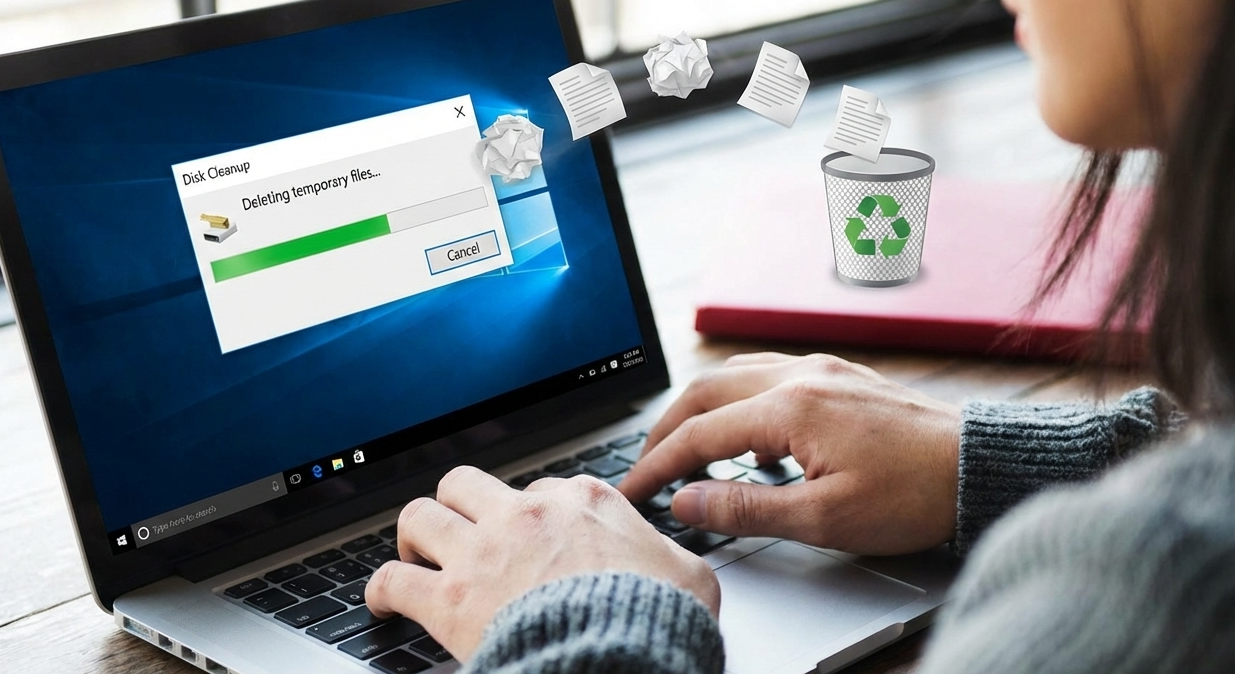
Your laptop installs temporary files daily, slowing your computer. Some of the files include browsing cache, system logs, and installation leftovers.
Cleaning junk files benefits your PC in many ways
- Increase available storage
- Improve file indexing speed
- Reduce system scanning time
- Enhance performance stability
- Prevent storage overload
Make this a monthly habit to clear out your junk and temporary files. This maintenance habit is most effective for speeding up your computer.
Manage Background Process
Applications continue to run even when you close them. Therefore, managing your background is the most important thing to make your PC faster. Managing background can:
- Reduce CPU usage
- Free up RAM
- Improve battery life
- Prevent system lag
- Enhance multitasking performance
You can also install a cleaner on your PC to remove junk and background applications. Applications such as messaging platforms, browsers, and sync services may continue to run in the background.
Open Task Manager and sort processes by CPU or memory usage. Identify high-usage apps and close the ones that aren’t essential. This step can significantly improve your computer’s performance.
Keep Your System and Drives Updated
Running the latest software versions ensures your PC benefits from performance enhancements, bug fixes, and security updates.
i. Regularly update Windows.
Windows Update provides critical updates that can improve system stability and performance. Check for updates:
Launch Settings > Update & Security > Windows Update.
Click Check for Updates, then install any available updates.
ii. Update the device drivers.
Outdated or incompatible drivers might create performance problems. You may update drivers manually or use reputable software that automatically detects and updates them.
How to manually update drivers:
Right-click the Start button and choose Device Manager.
Expand the categories, then right-click the devices you wish to update.
Select Update Driver, then choose Search automatically for updated driver software.
Updating drivers ensures that hardware components perform properly and helps speed up your computer’s performance.
Scan for Malware and Security Threats
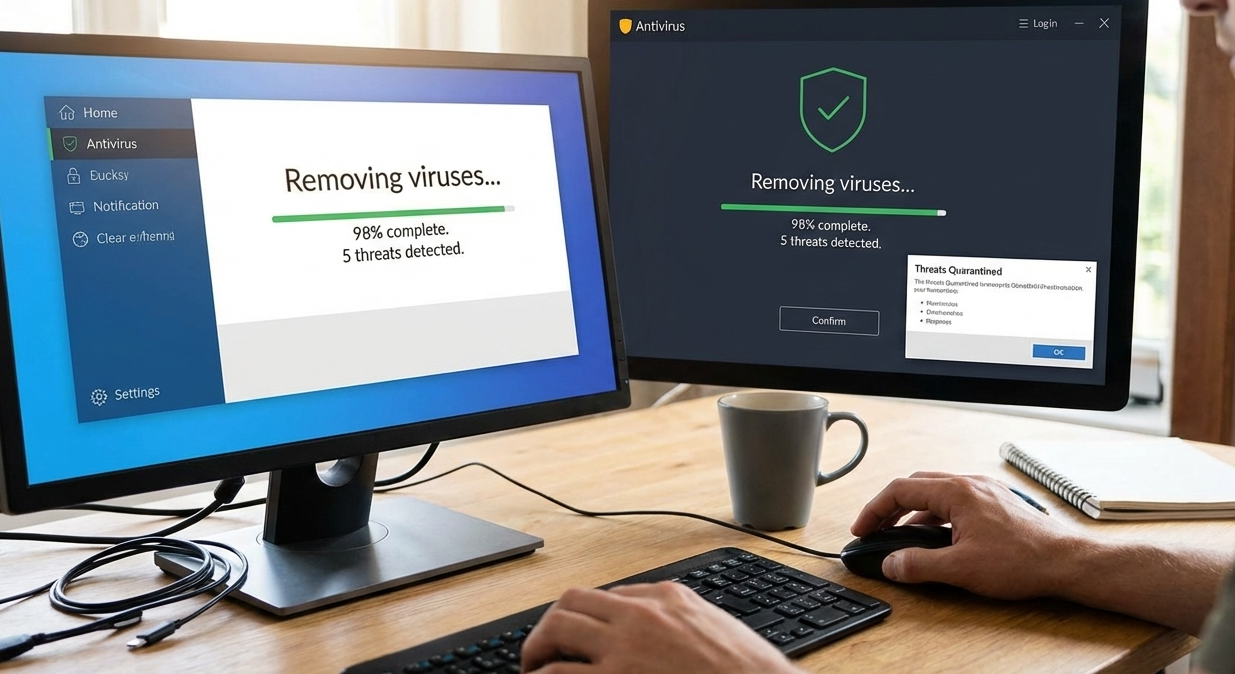
Malware is alarmingly easy to acquire on the current Web, whether through watering-hole attacks, drive-by downloads, or malicious e-mail attachments. Malware does not always leave your computer useless; it can often remain on your system for years, leaking data and spying on your actions. It can also slow down your computer, and unlike when you start programs, it can be difficult to determine whether malware is the source of the delay. Viruses can:
- Consume CPU power
- Use the internet bandwidth
- Run hidden background processes
- Install unwanted software
- Steal system resources
Sometimes, specialised malware-eradication programs can detect threats that ordinary antivirus software misses. Malwarebytes is a popular tool for comprehensive scanning and eradication.
Optimise Your Web Browser
As online browsing is a common activity, optimising your browser can improve your overall PC experience. Speed up your computer by optimising your web browser.
Clear cache and cookies.
Browsers use cached files and cookies to improve page load times. However, over time, these can build up and hinder browsing.
To clear the cache and cookies:
Launch your browser’s options or preferences menu.
Locate the section on privacy or history.
Choose the option to erase all browsing data, including cache and cookies.
Limit extensions and plugins
Browser extensions can be beneficial, but they may waste resources and slow down speed. Disable or uninstall any extensions that you do not use on a regular basis.
Keep your browser updated.
Browser upgrades often include performance improvements and security fixes. Make sure your browser is configured to automatically update or to check for updates regularly.
Adjust Power Settings for Maximum Performance
Power settings directly affect your system performance. Adjusting power settings can help you in many ways:
- Increases CPU frequency
- Improves processing power
- Reduces lag
- Enhances multitasking
- Maximizes hardware usage
Many background services run on Windows, some of which you might not need. System resources can be freed up by turning off unnecessary services.
Disabling essential services may cause system instability; proceed with caution. Before making any changes, research each service.
Restart Your PC Regularly
It sounds simple, but many users rarely restart their PC and keep it in sleep mode. Restarting can:
- Clears RAM
- Stops background processes
- Resets system errors
- Improves responsiveness
- Enhances stability
Keeping your PC in sleep mode builds up memory clutter. You can face obstacles or big challenges if you don’t restart your PC regularly, or once a day. This is one of the best ways to speed up your computer.
Adjust Visual Effects for Better Performance
Numerous visual effects in Windows can affect system performance, particularly on older or less powerful machines. Here’s how to maximise them:
- Open System Properties
- To access “Advanced system settings,” click on it.
- Click “Settings” under Performance.
- Select “Adjust for best performance” or change each parameter separately.
Lowering the processing power required for visual effects can greatly enhance performance on older computers. If you follow these steps, you won’t need to ask how to speed up your computer. Just follow the given instructions.
Conclusion
Your PC, computers, and laptops are important for doing your daily study, work, or assignments. If you are worried about how to speed up your computer, the tips above are for you. Take an hour. Apply these 10 strategies step by step. Clean it up. Optimise it. Restart it.
You might be surprised how much life is still left in your laptop.

